Build a Simple Productivity App Stack for Remote Work
A practical, low-cost productivity app stack for new founders and freelancers using Notion, Google Docs, and Microsoft Copilot.
Writing note: I am dyslexic. You may notice occasional language or grammar mistakes. My aim is to create content that is helpful, relatable, and easy to read.
Plain reading is on by default. Turn on hints only if you want short definitions for a few technical terms.
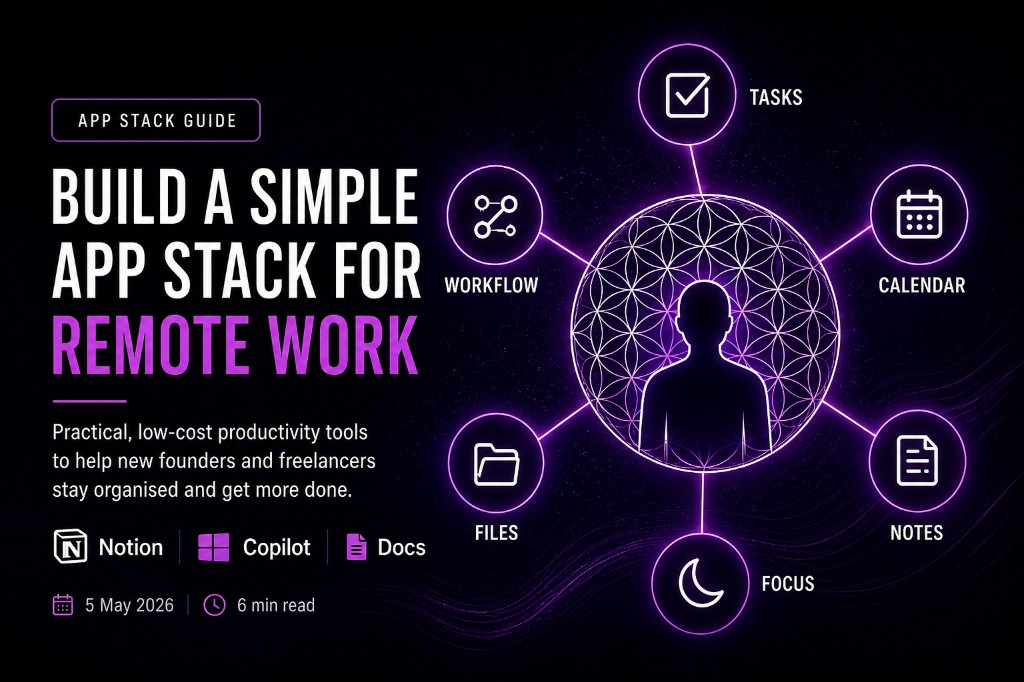
Have you ever heard of organised chaos? For years, I used the phrase incorrectly. Everything was actually far from organised.
Mentors, trial and error, and better tools helped me organise some chaos. I keep learning and improving. This guide aims to help you become, even just slightly, more organised with a simple productivity stack for remote work. One or two better productivity apps or processes can free your mental bandwidth and make the unmanageable feel managed.
The biggest shift for me came when I stopped trying to build a perfect system and started building one that actually sticks — even on low-energy days.
Finch proved one of the first apps and processes that changed things for me. I used it for years to build healthier habits. That experience showed me the benefit of repetition. When you repeat something enough, it stops feeling forced and becomes second nature. That’s when routine stuck for me.
Integrating technology into businesses was my role at Apple UK after the pandemic. I worked on a campaign for micro and small enterprises, helping new founders and owners choose usable tech solutions and productivity apps.
The biggest pain point I came across was simple: “I don’t know how to use the device.”
And the most common thing people said after support was: “I didn’t even know that was a thing.”
That line stayed with me. Most people were not behind, lazy, or incapable. They simply had not seen practical possibilities in modern workflow tools and productivity systems.
Now, new founders, freelancers, and those building on limited budgets usually ask: How do I get the most out of free, actually useful productivity apps and services?
I have spent many hours testing free trials to find what is truly helpful and what is noise in the world of productivity tools. Paid tools can be great, but they may not be realistic when money is tight.
If the bigger picture still feels messy — priorities, routines, and the system behind the apps — start with Starting Something New: Build a Simple Workflow Foundation. This guide is the tool layer that sits on top of that foundation.
My Holy Trinity Productivity App Stack
Google Docs, Notion and Microsoft Copilot. With the correct setup they can turn that pile of chaos scattered across your brain and hard drive into a list of completed tasks and room to breathe.
| Tool | Best For | Why It Works for Budget Users | Free Tier? |
|---|---|---|---|
| Notion | All-in-one workspace & planning | Tasks, docs, database, wiki — all in one place | Very generous |
| Google Docs | Writing documents & templates | Familiar, easy sharing, works everywhere | Completely free |
| Microsoft Copilot | Grammar, formatting & quick help | Helpful support without replacing your thinking | Free with account |
Use Copilot for grammar, spelling, and writing support. Google Docs, Microsoft Word or OpenOffice Writer to write documents. Keep Notion as the productivity base to plan, organise, and make workflow visible in your remote work system.
Notion is always in my new-founder productivity stacks. It’s what I use, know well, and can teach practically without your remote work system becoming overly complicated.
Why Notion for Productivity Apps?
I’ve spent time researching and trialing different productivity apps currently available. For me, Notion has been the most practical productivity solution, despite its steep learning curve and unfamiliar user experience. Once set up correctly, it can simplify your workflow and keep you from being pulled away by the distractions that come with jumping between apps.
You can build a “page” structure that holds your business assets, core documents, calendar events, and tasks all in one place. The reason I say “page” is that that terminology can be misleading at first. In practice, they function much more like folders, just with far more flexibility in your productivity system.
Instead of a rigid file system, you are building a living workspace where everything connects.
I’ll break down Notion in more detail in a follow-up guide. I’ll also share how I’ve set mine up. The free template will be released with the “How to build the Dashboard” guide in the near future if you don’t have the time, interest, or capacity to build your own from scratch in your productivity stack.
Word Processing Solutions
As much as we might try to avoid it, admin is a mundane though essential part of any daily workflow. I’ve spent hours creating templates for my business, simple but necessary things like invoices, consent forms, and creative briefs. To do this effectively, you need an application that is easy to use and accessible productivity software.
From my experience, the most reliable productivity apps for this are Microsoft Word, Apple Pages, Apache OpenOffice Writer, and Google Docs. All are user-friendly, and depending on your experience, the familiarity and usability are quite similar in most workflow setups.
If you already know one, stick with it. There’s no reward for switching tools just for the sake of it in your productivity system.
If you’re entering this space for the first time, I’d recommend Google Docs. It allows you to create, store, and share documents in one place with minimal setup. You can then use Notion to store and organise your templates for future use in your productivity stack.
Notion also integrates well with Google Calendar, allowing you to manage reminders and meetings alongside your documents. The Google ecosystem and Notion complement each other well, forming a simple but powerful productivity system for staying organised.
AI Assistant Solutions
You don’t need a deep technical understanding of AI to be familiar with the term. It’s everywhere now, woven into the productivity apps and tools we use every day.
I could go into the ethics and the wider implications, but like most things, when used correctly, it becomes a valuable tool rather than a crutch in your productivity workflow.
There are a huge number of AI tools and agents available, all with different use cases and levels of functionality. Instead of getting lost in that, it’s better to focus on workflow and productivity systems.
For me, Microsoft Copilot has been one of the most useful free productivity tools. It’s particularly helpful for document formatting, spelling, and grammar, acting as a support layer rather than something that replaces your thinking.
Implementation Tips for Real Life
This guide does not build a perfect stack. It builds one you can use — light, realistic, and repeatable. You maintain it when energy is low, and life gets messy in real-world productivity workflows.
Start small. Pick just one or two things from this stack and use them consistently for two weeks. Don’t try to move everything at once. Build the habit first, then add the next piece.
Do a quick weekly review in Notion every Friday afternoon — even if it’s only 10 minutes. That single habit has saved me more time than almost anything else.
Final Thoughts
If you only take one thing from the guide and it’s not “Notion is God” it’s that a solid foundation to your daily workflow can make a massive difference to your working day.
Try out these suggestions and see how even a small shift in your workflow feels. Share your progress in the comments, and let me know what part helped you get more organised.
Once your tools feel steadier, you may want help choosing how you show up publicly. What Is Branding? A Simple Guide for New Businesses and Creators walks through personal, business, and product branding in plain language. Or go back to the foundation in Starting Something New if you need the priority system first.
Feedback
Comments & usefulness
No account needed. Rate how useful this guide was and leave a comment, question, or note. Comments are public and stored for everyone reading this guide.
Comments
No comments yet. Be the first to leave a rating and note.